
Step 1: Navigate to AWS CloudWatch.
Step 2: Search for "Log Insight" within the logs.
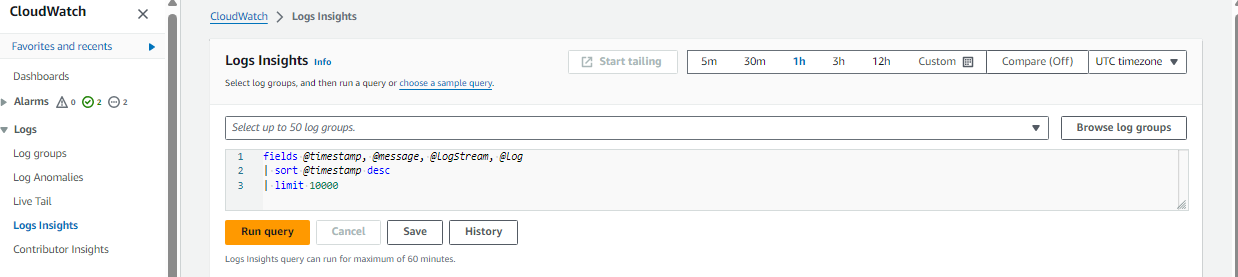
Step 3: Browse for the log group from which you want to extract the data.
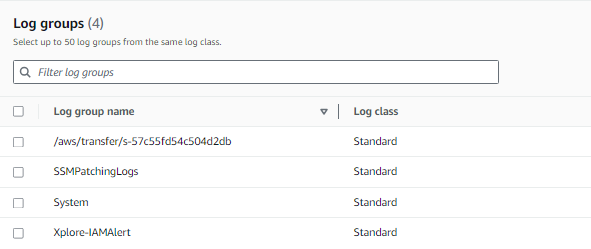
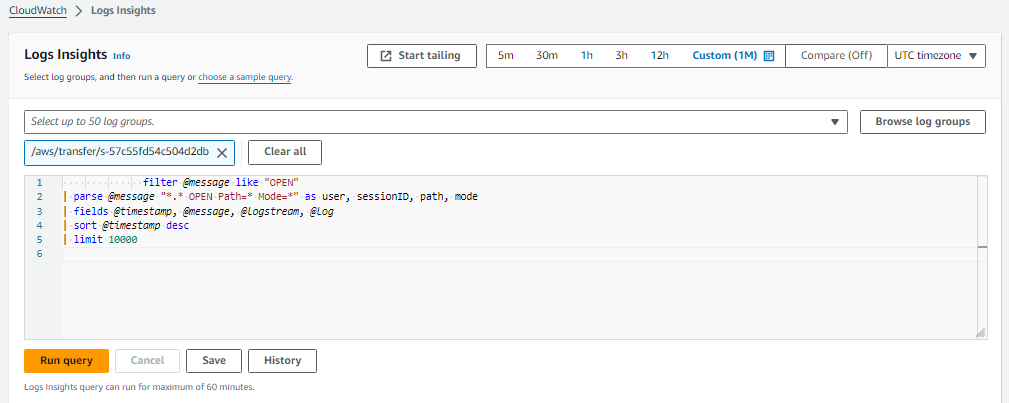
Step 4: After selecting the log group, run the following query:
filter @message like "OPEN"
| parse @message "*.* OPEN Path=* Mode=*" as user, sessionID, path, mode
| fields @timestamp, @message, @logstream, @log
| sort @timestamp desc
| limit 10000
Step 5: Customize the time frame according to your needs and run the query.
Step 6: Download the data as an .xlsx file.
To find more accurate data or to confirm your extracted data:
Step 7: Navigate to the log group within logs in AWS CloudWatch., choose the logs as per you need .
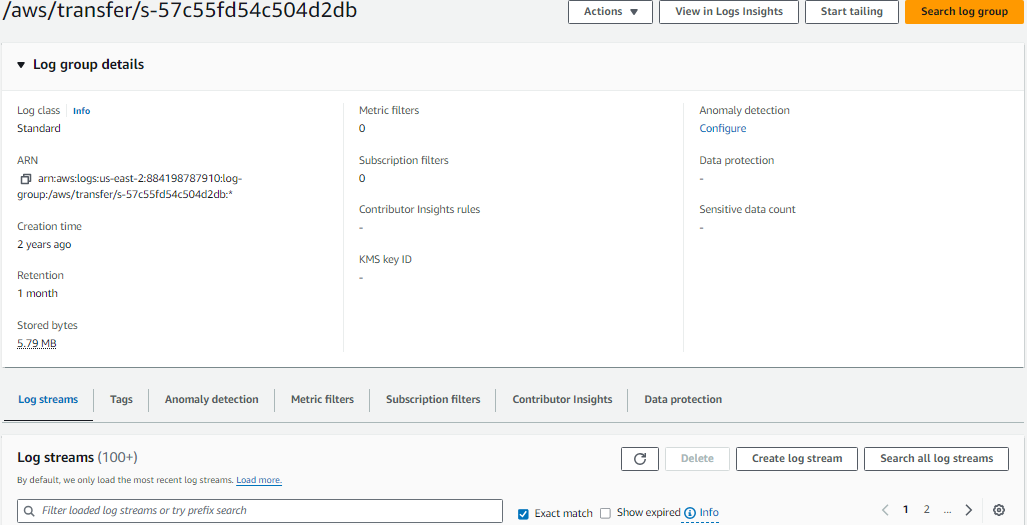
Step 8: Select the log stream and then go to "Search for all log streams."
Step 9: You can search for a particular user ID in this bar using '%' before and after the user ID as a prefix and suffix.
Example: %FKOL011492%

Step 10: Send the data to the client.